LiveToka for Chrome and Firefox: live translated captions on any tab
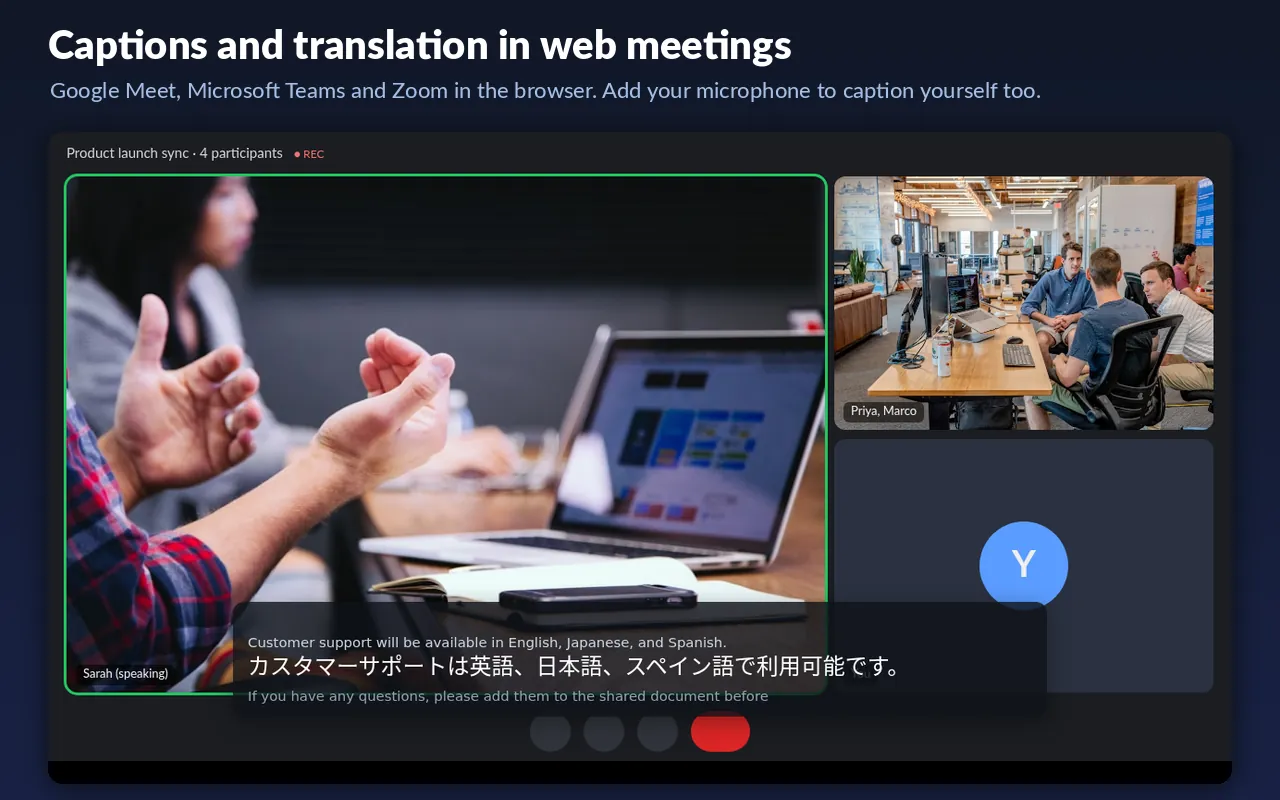
Turn the sound of any browser tab into live captions, translated while people speak. The extension listens to the audio itself, so it works on videos and live streams without subtitles, online classes, webinars and podcasts, and on web meetings in Google Meet, Microsoft Teams and Zoom.
New accounts get 10 free minutes. Sign in with Google — no credit card required.
Prefer no installation? Use the web app with the same account.
What it does
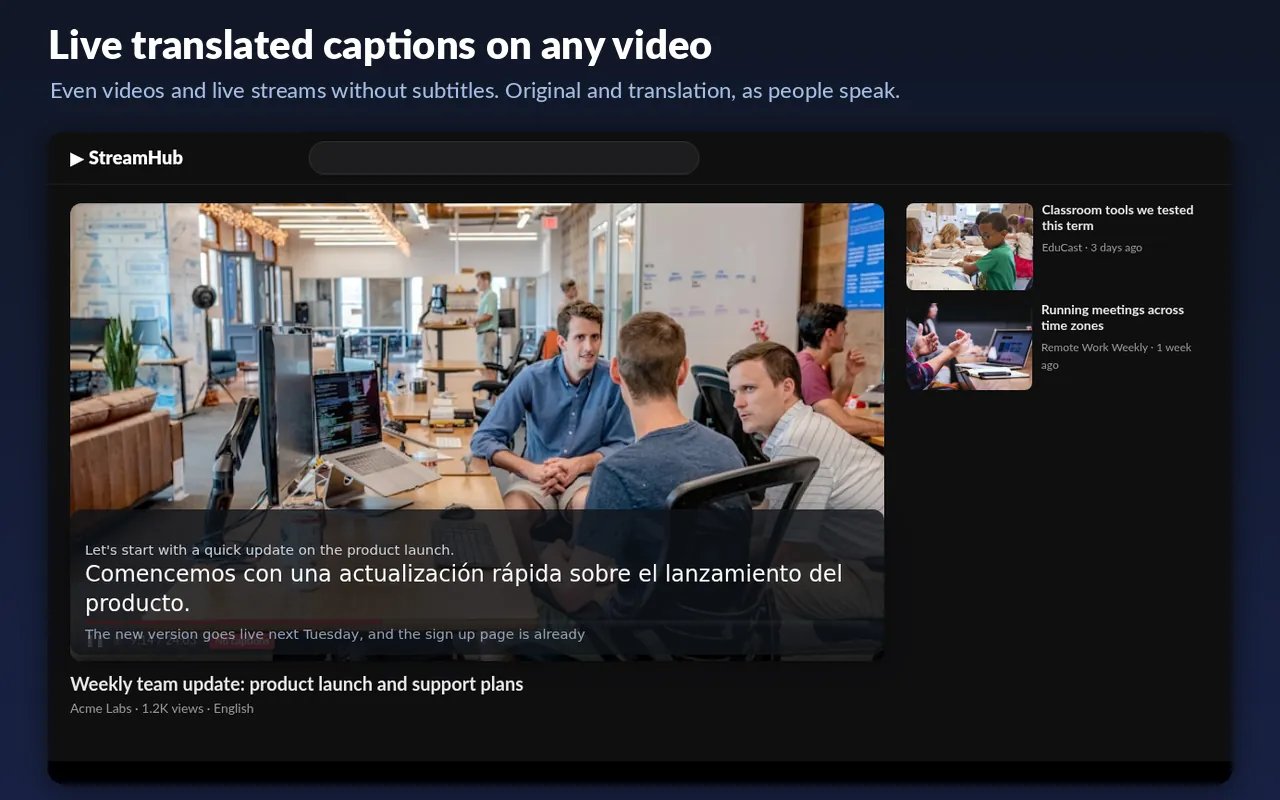
- No subtitles needed – the tab's audio is transcribed directly, including live streams.
- Bilingual captions on the page: each sentence in the original language with the translation underneath, or the translation only. Or captions without translation.
- Speech recognition in 55+ languages plus bilingual modes, translation into 100+ languages – the same languages as the web app.
- Meeting mode: captions the other participants (tab audio) and you (microphone) together. Use headphones.
- Stays visible in fullscreen. Drag the captions anywhere, change the text size, hide the original.
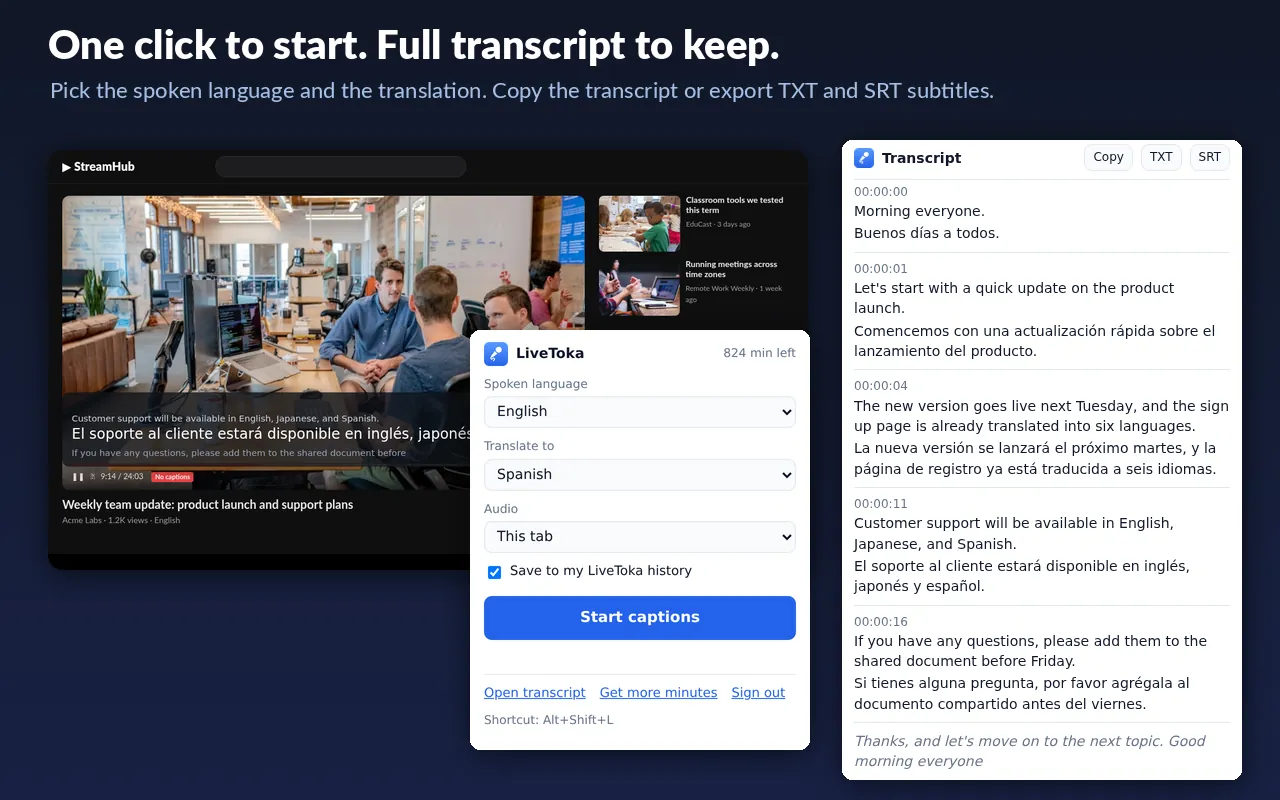
- Full transcript in the side panel: copy it or download TXT, or SRT subtitles with timestamps.
- Keyboard shortcut Alt+Shift+L to start and stop. Stops by itself after 3 minutes without sound, so a paused video doesn't use your minutes.
How to use it
- Add LiveToka to Chrome or Firefox. A livetoka.com tab opens: sign in with Google (new accounts get 10 free minutes).
- Open the tab with the video, stream or meeting and start playing it.
- Click the LiveToka button in the toolbar, choose the spoken language and the language to translate into, and click Start captions.
- Captions appear on the page within a few seconds. Click Open transcript for the full text, and Stop when you are done.
Extension or web app?
- Extension: captions right on the page you are watching, including fullscreen; no screen-sharing dialog; start with one click or the shortcut.
- Web app (livetoka.com): no installation, works in Safari too, a large caption view for projectors, saved history with CSV/JSON export, and audio from desktop apps through a virtual audio device (VB-CABLE on Windows, BlackHole on Mac).
Both use the same account and the same minutes.
Pricing
Installing the extension is free. It uses your LiveToka account: new accounts get 10 free minutes, and translation uses minutes at twice the rate of captions only (10 minutes of captions or 5 minutes of translation). For more, buy a one-time Minutes Pack ($4.99: up to 60 minutes of translation or 120 minutes of captions) or a monthly plan – see pricing.
Privacy
Audio is captured only from the tab where you click Start captions, and the microphone only if you choose it. The audio is sent encrypted to LiveToka for transcription and translation and is not stored; transcripts are saved to your history only if you keep "Save to my LiveToka history" on. The extension does not read page text or your browsing history. Details in the privacy policy.
New accounts get 10 free minutes. Sign in with Google — no credit card required.
Frequently asked questions
Is the LiveToka extension free?
Installing it is free. It uses your LiveToka account: new accounts get 10 free minutes, then a $4.99 Minutes Pack or a monthly plan. The same minutes work on the website and in the extension.
Does it work in Microsoft Edge?
Yes. Edge can install extensions from the Chrome Web Store: open the store page in Edge, allow extensions from other stores when asked, and click Get.
Does it work in Firefox?
Yes, LiveToka is on Firefox Add-ons. Firefox does not let extensions capture a whole tab, so in Firefox it captures the video and audio players on the page (YouTube, most video sites, Google Meet). A few sites play sound in other ways and cannot be captioned in Firefox; Chrome and Edge capture all tab audio.
Do videos need subtitles?
No. LiveToka transcribes the audio of the tab, so it works on videos and live streams that have no captions at all.
Can it caption my own voice in a meeting?
Yes. Choose "This tab + my microphone" as the audio source. Use headphones so the microphone does not pick up the meeting sound a second time.
Which pages does it not work on?
Browsers do not allow extensions on their own pages, such as settings pages and the extension stores. Any normal website tab works.
Is my audio stored?
No. Audio is processed in real time and not stored. Text is saved to your history only if "Save to my LiveToka history" is on.